
*This article contains affiliate links (such as Amazon Associates). The operational style introduced here is based on my firsthand experience running an M1 MacBook Pro (16GB) in Southern Hokkaido.
Many people struggle when trying to choose a computer to automate their blog or daily tasks using AI. You often see advice online claiming you need a 300,000-yen Windows machine packed with a heavy GPU, but running everything out here on my homestead while building personal automation projects proved the exact opposite.
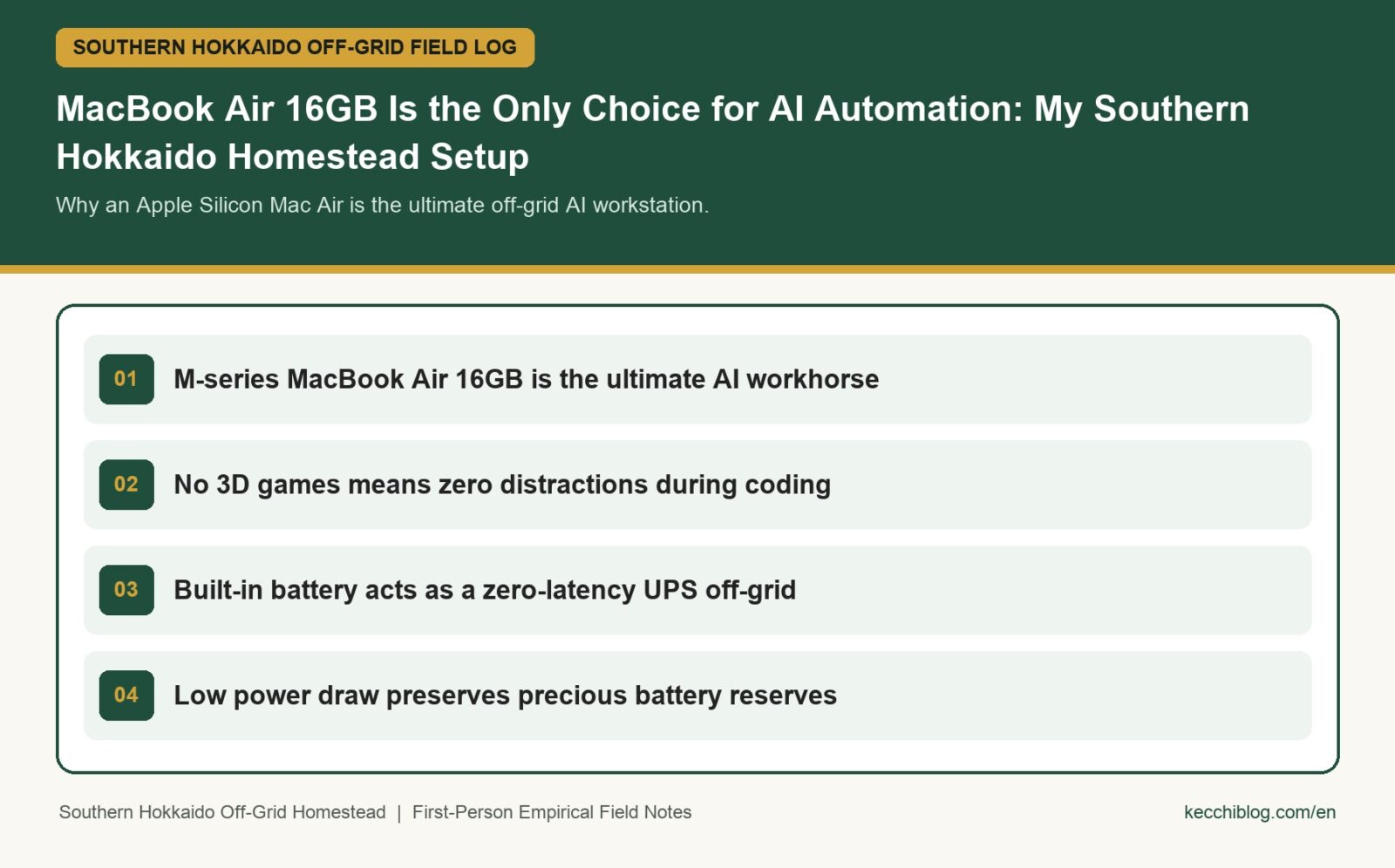
Your very first machine should be the MacBook Air (Apple Silicon, 16GB RAM or higher) without a second thought. Its inability to run 3D games acts as a forced focus device, and its internal battery even doubles as a 100,000-yen class Uninterruptible Power Supply (UPS).
This is my streamlined setup based on my current gear (M1 MacBook Pro 16GB + Anker hub + 27-inch refurbished monitor). You can check details and purchase links in the US Gear Box below.
| Category / Gear | Role on Homestead & Selection Criteria | Details & Purchase |
|---|---|---|
| [Top Pick] MacBook Air (M-series / 16GB / 512GB~) | Fanless AI mothership with a built-in 0ms UPS | See US Gear Box below |
| [Essential] Anker 332 USB-C Hub (5-in-1) | Expands HDMI, USB-A, and PD charging for around $30. I use an Anker hub daily | See US Gear Box below |
| [Recommended] 27-inch Matte External Monitor | Practical setup to display AI screens alongside work windows. I use a ThinkVision | See US Gear Box below |
| [Future Expansion] Mac mini (Apple Silicon / 16GB~) | Secondary "AI assistant room" once automation grows (requires separate UPS) | See US Gear Box below |
Introduction: The Inability to Play 3D Games Becomes the Ultimate Focus Tool
You might think, "Couldn’t I just buy a Windows machine and simply choose not to install games?" However, human willpower is rarely as reliable as we think.
If a 300,000-yen PC capable of running the latest games smoothly sits on your desk, late-night writer’s block will easily pull you back into temptation with a single click. Choosing a MacBook that cannot handle heavy 3D games right from the start is the ultimate environmental design, akin to leaving your smartphone in another room while studying.
If you want to transition from a mere consumer of content to someone who commands AI to build assets and systems, removing temptation from your desk is the most reliable first step.
 けっち
I still use the M1 MacBook Pro (16GB, 512GB) I bought years ago. Because I cannot install games on it, simply opening the lid naturally shifts me into production mode, prompting me to think about what system to build today.
Seta
If you want to play the latest 3D games at maximum settings or experiment with massive local AI models entirely on your own PC, a GPU-equipped Windows desktop is the correct answer. Windows wins hands down when it comes to game compatibility and specialized CAD software.
Even so, out here in Southern Hokkaido—where I manage around 50 free-range chickens and handle DIY projects while keeping AI running 24/7—I chose a MacBook for my mothership. It fits a maker’s lifestyle because of its "temptation barrier," "resistance to 0.01-second momentary power drops," and "low power consumption with a fanless structure."
Reason 1: Ditching Local AI and Fully Embracing the Mac Gemini App
(Note on Japan’s Consumer Affairs Agency regulations: Under recent administrative guidance regarding misleading representations, all software capability claims and hardware performance comparisons in tech reviews must remain strictly grounded in verifiable, objective benchmark data rather than inflated marketing promises.)
When researching AI PCs, articles often claim that 32GB or 64GB of RAM is mandatory for running local LLMs directly on your device. I tested resident general-purpose local LLMs (like Ollama) on my 16GB M1 Mac, but ultimately concluded that keeping general local AI running locally is not worth it.
Running general models locally on a 16GB machine bogs down memory and slows down other tasks, while their response accuracy still falls far short of modern cloud AI. Leaving heavy inference to fast, high-accuracy cloud AI (like the Mac Gemini app) keeps system load low and offers an overwhelmingly better return on investment.
The Mac Gemini app in particular stands out for how seamlessly it integrates into the operating system.
- Instant Launch with Option + Space: Call up AI in a split second without switching work windows
- Direct Screen & Finder File Sharing: Show open documents and consult the AI immediately
- Background Parallel Automation: Let AI handle tasks while you move on to other activities
By shifting your workload entirely to cloud AI, even a 16GB RAM MacBook can comfortably handle blog automation, video clipping, and audio production pipelines.
Reason 2: Automated Execution via Google Antigravity and macOS Stability
Google’s development environment, "Google Antigravity," truly shines when moving beyond chat consultations into code writing and routine task automation. A major advantage is passing the strategy organized in the Mac Gemini app straight to background execution, freeing me to step outside the main house.
For this kind of "hands-off automation where you don’t stay glued to the screen," macOS standard specifications provide tremendous peace of mind.
- Built-in UNIX Terminal: Automation scripts run smoothly without requiring separate WSL virtual environments like Windows
- Easy to Avoid Forced Update Reboots: Minimizes the risk of overnight automated processes suddenly halting due to OS updates
- Check Results via Smartphone While Working Outside: Receive notifications on your pocket device while tending chickens or doing DIY
If your goal isn’t to spend more hours glued to a screen, but rather to reclaim your time by letting AI handle tasks, an OS with fewer setup roadblocks and long-term stability is a distinct advantage.
Reason 3: Built-in Battery and Low Power Consumption Against Off-Grid "0.01-Second Power Drops"
At my Southern Hokkaido homestead, my electrical system runs on six 440W solar panels, a LVYUAN 5kW hybrid inverter, and two 48V 100Ah storage batteries. Experiencing this environment made me keenly aware of the danger posed by momentary power interruptions (drops) that occur when switching power sources.
As covered in my guide on building a 48V solar setup, switching power sources causes a momentary blackout of about 10 to 20 milliseconds (0.01 to 0.02 seconds) due to technical specifications.
For lighting, this is barely a flicker. But desktop PCs without batteries shut down instantly within that mere 0.01 seconds.
At my desk, I use a portable power station to protect external monitors and communication gear. However, trying to protect a high-load desktop PC from micro-interruptions without dropouts causes equipment costs to skyrocket.
As noted in official UPS specifications, inexpensive 10,000 to 20,000-yen UPS units experience up to 10 milliseconds of interruption during switching. Choosing a fully uninterrupted commercial double-conversion UPS drives costs up significantly, with compact professional models easily exceeding 100,000 yen.
By contrast, the MacBook Air comes standard with a superlative UPS with a 0-millisecond switch time (its built-in battery). It keeps running AI tasks seamlessly through inverter switching drops, household circuit breaker trips, or lightning strikes.
The difference in power consumption is also staggering. Unlike gaming PCs that consume over 300W under heavy load, Apple Silicon Macs idle at just a few watts and consume only tens of watts under normal operation.
Even during Hokkaido’s snowy winters with short daylight hours (where actual low temperatures range strictly between -3°C to -8°C [18-27°F]), avoiding heavy battery drain is a massive advantage. On standard grid power, running it 24/7 costs only a few hundred yen per month.
Reason 4: Perfection as a Tool (No Mouse Needed, Fanless Design, High Resale Value)
Viewed as an everyday tool, the MacBook Air offers comfort and physical durability that don’t show up on spec sheets.
- Force Touch Trackpad & Dedicated Language Keys: Complete screen switching and text conversion with fingertips alone, rendering external mice unnecessary
- Completely Fanless Design: Lacks intake fans, preventing dust or pet hair from being sucked inside and extending lifespan
- High Resale Value: Retains market value on the used market if your needs change, keeping real costs low
In my main house, I use a wood stove, and my dog (a Jomon Shiba named Seta) goes in and out, making it an environment where ash and fur inevitably float around.
My current M1 MacBook Pro has cooling fans. Having operated it for years in this living environment is precisely why the strength of a fanless MacBook Air appeals so strongly to me.
How to Choose Without Regrets and Essential Peripherals (Budget Realities)
Here are the pitfalls to avoid when putting together your first setup, narrowed down to four points based on my homestead standards.
1. Top Pick: MacBook Air (M-Series Required, 16GB RAM or More)
My current daily driver is an older M1 MacBook Pro (16GB / 512GB). However, if you are buying a new machine today, I recommend skipping the heavy, expensive Pro and going straight for the MacBook Air.
Current Air models come standard with 16GB of RAM and a completely fanless design.
- Used Intel MacBooks (Pre-2020): Prone to overheating, fan noise, and battery degradation, and increasingly unsupported by modern AI tools
- Budget Entry Models (Fixed 8GB RAM): Suitable for basic tasks, but inadequate as a mothership for parallel AI work. Always choose M-series chips with 16GB or more
If you want to keep your budget around 150,000 to 180,000 yen, previous-generation M-series models (16GB) or Apple Certified Refurbished products are prime targets. For cloud-AI-centric operations, you will barely notice a performance difference.
2. Essential Hub: Anker 332 USB-C Hub (5-in-1)
Because the MacBook Air features a minimalist port layout with MagSafe charging and Thunderbolt (USB-C) ports, grabbing a USB-C multi-hub right away makes life much easier.
I use an Anker hub for my monitors and devices daily. Starting with a reliable multi-hub gives you instant HDMI and USB-A expansion with a single connection.
3. Recommended Monitor: 27-Inch Matte IPS External Monitor (Refurbished OK)
If you want to place AI execution screens side-by-side with writing windows at your desk, a 27-inch matte monitor dramatically boosts productivity. Since current MacBook Air models have an independent MagSafe 3 charging port, there is no need to obsess over expensive USB-C powered monitors.
I connect a business-grade 27-inch matte IPS unit via HDMI and mount it on a VESA arm for comfortable daily use.
4. Future Expansion: Turn a "Mac mini" into an AI Assistant Room
Once you already own a MacBook and background automated tasks increase, a Mac mini (16GB or higher) makes a great secondary candidate. Rather than acting as a local LLM cluster, it excels as a dedicated machine that runs cloud AI agents 24/7, leveraging its low 4W idle power draw.
However, because the Mac mini lacks a built-in battery, environments prone to micro-interruptions or lightning strikes like my off-grid homestead require a separate UPS or portable power station.
Frequently Asked Questions (FAQ)
Q: Is 16GB of RAM really enough? Should I upgrade to 24GB or 32GB?
Unless you plan to run heavy local LLMs locally on your machine, operations centered around Gemini and Antigravity run smoothly on 16GB. I use an M1 (16GB) machine to run blog and video automation; getting your systems running quickly with a 16GB machine pays off faster than waiting to afford a RAM upgrade.
Q: Should I choose the 13-inch or 15-inch screen size?
If you plan to connect to an external monitor at your desk, the 13-inch model—weighing around 1.23kg, highly portable, and budget-friendly—offers the best balance. Only consider the 15-inch model if you refuse to use an external monitor and intend to work exclusively on the built-in screen.
Q: Are there any things to watch out for when buying during major sales?
While events like Black Friday sometimes discount MacBook Air units, Apple products rarely qualify for point-back reward campaigns. It is best to judge the hardware discount on its own merits and fulfill point conditions using peripherals like USB-C hubs or monitors.
Summary: Cut Consumption, Partner with AI, and Move to the "Maker" Side
Choosing a computer may look like comparing specs, but it is actually an environmental investment that decides whether you spend your time on consumption or on building systems. Cutting out temptation, harnessing cloud AI, and running on just a few watts through power drops and outages makes the MacBook Air (M-Series / 16GB+) a first machine you won’t regret.
[Homestead x AI Infrastructure Conclusion: Your First Machine]
– Inability to play games = A forced focus device that physically blocks temptation
– Ditch local AI and go all-in on 16GB + cloud AI (Gemini x Antigravity)
– Built-in battery = 0ms switching UPS (saving tens of thousands of yen)
– Your first setup: MacBook Air (M-Series / 16GB+) + $30 hub + practical monitor
If these raw Southern Hokkaido field logs are useful for your own off-grid homestead, you can also support Seta & the flock on Buy Me a Coffee.









Comments